
A txtUs number gives your business a dedicated virtual mobile number which people can text (but cannot call) enquiries to or to reply to messages you send out to them from your system.
You can add as many txtUs numbers to your account as you wish and they can each have bespoke settings which can be a great solution for a small office environment or call centre where each member of staff could have their own txtUs number for their clients.
The unique advantage of the txtUs system is that the full conversation between you and each mobile number is sent to you via email and you simply reply via email. In essence, to answer the ‘how does it work?” question …. exactly like your email does. The only difference being of course that your replies are being sent out the customer as text messages.
Step 1 – Adding a txtUs number to your account
Login to your account. If you don’t have an account, you can set one up here.
Click the Purchase button at the top right of the system and choose a reply number in the pop up box. You can now buy your txtUs number paying by card or you can generate an invoice to pay by BACS.
An invoice will be generated for each subscription period and emailed to you – you can also pay this by card in your account or by BACS. Your subscription may be cancelled at any time by simply choosing the unsubscribe option in the financials section. This will then remove the number from your account at the end of the current subscription period and will not issue any further invoices.
Step 2 – Applying the settings for your txtUs number
Go to “Message Control” the select your txtUs number and click the ‘Configure’ button.
Auto reply by SMS – If you would like to automatically send a text message back when somebody texts your txtUs number, you can set it here. Simply change active to ‘Y’, enter your text message and click ‘OK.
IMPORTANT NOTE: The text autoresponse is only sent once to any individual mobile number, the first time they text in. This is to avoid them receiving the same autoresponse message over and over if you get into a conversation with them.
Email settings – This is where you set how your system handles the text conversations you have via email;
Active – set to N if you do not wish to have incoming texts emailed to you
E-mail – set the email address you wish incoming texts to go to.
Thread Count – This is the amount of history you want included on each conversation email. For example, if you wanted to see the last 5 messages from a person and the last 5 replies you sent them you would set it to 10.
Use as Sender default – enable this if you want your txtUs number to be the default reply number for text messages you send out from your system
Data forwarding – only used for programmers to deliver incoming message data to a script URL. Please leave this inactive unless you are sure of what you’re doing.
Step 3 – Testing your new txtUs number / Seeing a conversation in action
Send a text message to your new txtUs number then, if enabled, check your email inbox on the email address you have set (if it doesn’t come pretty instantly, check any spam filters or folders you may have enabled). You will see you have a new message from yourself.
Now reply to that email in the normal way (as you would an email). The only difference being you must end the message you send back with ##. This tells our system that it’s the end of the reply and so doesn’t send all the history contained in the email below.
You will then receive the reply on your phone. If you reply back again, check your email again you will now see the conversation thread developing.
Below is a conversation thread email for example from a company confirming a meeting:
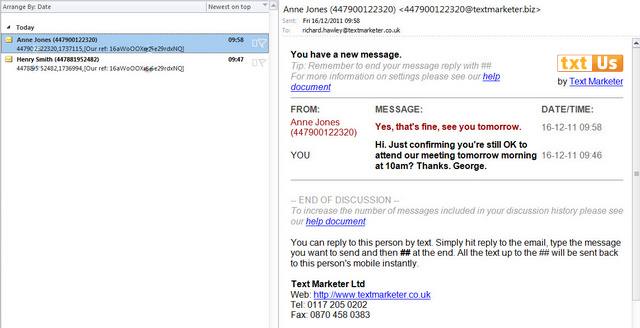
If your contacts’ names and numbers are in your address book, the name of the person replying will also be shown.
Step 4 – Promoting your new txtUs number
Congratulations! Now you are a text enabled business and you can promote your number as you would your telephone number, fax number or email address. See how we do on our enquiries page. As a customer, you are free to use the txtUs logo next to your number which adds impact and encourages use.
Other Common Questions
Getting replies from text campaigns
To enable people to reply to you, you simply have to set the Sender ID as your txtUs number. When you have a txtUs number your account will automatically do this as the default, which you can change if you wish.
Charges
You are only charged for messages you send out, not for incoming messages. The cost of this is just 1 credit per 160 characters as per normal charges.