
Quick Start! I’ve set up my Text Marketer account, how do I get going quickly?
Setting up a bulk sms account is free and there are no monthly running costs.
To save you from reading dull documentation, we have put together some bulk sms training videos that briefly explain how to use your account. For written instructions, continue reading!
Quick Send
When you log into your account, you will be taken straight to Quick Send. Quick send allows you to send text messages to either individuals or thousands of numbers.
This is ideal if you want to send out messages without needing to upload your numbers first.
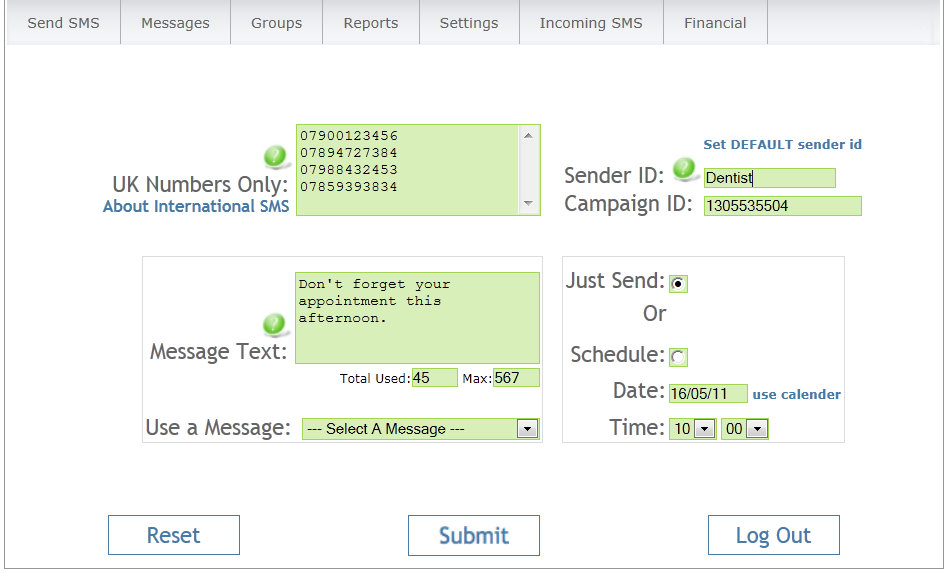
Go to Send SMS – select Quick Send
Mobile numbers are added to the numbers window. These can either be typed in directly or you can copy and paste numbers from an Excel Spreadsheet. The numbers should either be entered as a list, with numbers directly beneath each other, or they can be separated by commas.
There is no limit to the number of mobile numbers that you copy and paste across.
What format should the numbers be in?
If Excel has cut off the leading 0 from your list of numbers, our system will automatically put the 0 back in.
The following mobile number formats can be processed.
07900122321
447900122321
7900122321
+447900122321
Then give the campaign a name in the Campaign Name window.
Either type your message into the message text window or you can select a pre-prepared one from the message library.
If you would like your message to go out straightaway, then leave the Just Send option selected. If you’d prefer your campaign to be sent out later on, then select the Schedule option and choose a later date and time.
Press Submit to submit your campaign.
You’ll then be taken to the SMS Activity Log where you’ll see your campaign queued and waiting to go. If you need to stop your campaign for any reason, you can hit the Abort link on the right hand side.
Set the sender name.(Who the message is from.)
Setting the sender name – who the message is from
You can also set the sender name for your campaign; this is who the message is from and appears on the recipients’ phone as the message header.
Go to Send SMS – Default Sender ID. Click in the sender window and type the sender name. There is maximum of 11 characters including spaces. To set the sender name, press the submit button.
As well as using Quick Send you can also upload upload numbers to groups and store them within your account. You can then easily select groups and schedule sms campaigns to be sent to those groups.
Uploading Numbers to Groups
This is a quick and easy process and will take no more than a minute or so.
Please click here for detailed instructions on how to upload numbers to groups
Sending an SMS Campaign to a Group
When you have uploaded your numbers to a group, the group is saved within your Text Marketer account.
Click here to find out how to send a message out to a group.
Delivery Reports
A delivery report is generated for every sms campaign that you send from your bulk sms account. Delivery reports list of all the numbers that you sent to and provide a result or outcome for each sms sent. More details on delivery reports can be found here.
Below, you’ll find a list of requently asked questions.
How much does it cost to send text messages?
Buying SMS credits and payment processing
Can my customers reply to the texts that I send them?
I’ve got a keyword set up on a short code, how do I access the incoming texts?
Can I set the sender name, who the message is from?
Can I stop an SMS campaign after I have set it up?
How many mobile numbers can I upload into a group?
Can I send a message that is longer than 160 characters
What characters can I use in my sms?
Can my customers unsubscribe from receiving further texts